Descriptions
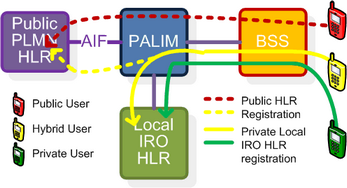
There are three types of users defined for the iPALIM. They fall into the categories of “private”, “public”, and “hybrid” users. Each user is served by either the IRO or by the PLMN, depending on the nature of call and user classification. The “serving” entity provides basic GSM services: originating and terminating calls, mobility management, subscriber authentication, supplementary services, etc. On top of the basic GSM services, IRO also provides iPALIM advance functions designed specifically for iPALIM users.
iPALIM holds an iPALIM User List. The iPALIM user list is a list of IMSI and iPALIM user type. If a user with his IMSI in the iPALIM list then he is an iPALIM user, either Private or Hybrid, or else he is a Public user. Any users with their IMSI not in the iPALIM User List are Public users.

Public user is serviced by the PLMN MSC only, and the IRO behaves like a BSC for all transactions. Subscription data of Public users are in the PLMN HLR. Public user’s MSISDN is given by the PLMN operator. Public User only registers to the PLMN HLR, and his subscription data is inserted into PLMN VLR.
|
Private user is known to a single IRO and is not recognized by the PLMN. They are served by a single IRO only. Subscription data of Private user is in the HLR of the IRO where the Private user will get service. Private user only registers to the IRO HLR and his MSISDN is given by the IRO.
|
Hybrid user is a user type between the Public and Private user. They can be served by the PLMN and the IRO. Hybrid user has two sets of subscription data, one is in the PLMN HLR and another one is in the IRO HLR where he will get service. Hybrid user has dual MSISDN, one from PLMN (public) and another one from IRO (private). Hybrid user registers to both the PLMN and IRO. In case the A-interface connection between the IRO iPALIM and the PLMN was broken then the Hybrid User will only get local IRO service.
|
Implementation
|
1.Click the Account main menu.
2.Select iPALIM under the Subscriber submenu.
3.Click
4.Fill in the parameter details for this subscriber.
5.Click
|

 at the upper-right corner.
1.Click the Configuration main menu.
2.Select iPALIM under the Subscriber submenu.
3.Click the IMSI of the subscriber want to edit, this displays the editable parameter window.
4.Under the Value heading, modify the values of the subscriber parameters as required.
5.Click the
6.Click the
7.Verify that the new values have been saved for the subscriber.
|
 button at the top of the parameter table to upload the new values to iPALIM servers.
 button at the top of the parameter table to update values from iPALIM servers.
1.Click the Account main menu.
2.Select iPALIM under the Subscriber submenu.
3.Click the IMSI of the subscriber want to delete, this displays the subscriber parameter window.
4.Click the
5.Click
6.Verify the subscriber has been deleted from iPALIM.
|
 button at the top of the parameter table to delete this subscriber from iPALIM servers.
 to upload iPALIM subscribers from iPALIM to EMS database.
|
1.Click the Account main menu.
2.Select iPALIM under the Subscriber submenu.
3.Click
1.Click the Maintenance main menu.
2.Select Account Data under the Backup&Restore submenu.
3.In the right Account Data window, click Download following iPALIMSubscriber to download subscriber file.
4.In the windows pop-up window, click the Save button.
5.Select a location on the local PC to save the csv file and click the Save button.
6.Find and verify the downloaded file on the local PC.
|

1.Create an iPALIM Subscriber with the required initialization parameters according to the previous section, click
2.Export iPALIM Subscribers according to the previous section.
3.Open the downloaded csv file by a text editor (UltraEdit is recommended).
4.Find the line of the new created subscriber in the file, replicate it to a new file.
5.Replicate this line to reach the numbers of subscribers want to import, a maximum of 5000 lines (subscribers) in a single file.
6.Find the IMSI and MSISDN columns, modify all of them as required, save the file in a local directory.
1.Click the Account main menu, select iPALIM under the Subscriber submenu.
2.Click
3.Click
|
 instead of
  at the upper-right corner, select the saved file in the local directory, click
  to upload the subscribers to iPALIM servers.
Return to
2.2.1.9